Snaptube APK Download: Install in 3 Ways and Fix Errors
 Download Snaptube
Do you want to download Snaptube and don't know where to start? This guide shows the three ways to install it on Android, what you can do afterwards and how to fix the most common errors. Before you begin, check the basics: Snaptube is for Android only, it needs version 5.0 or higher and about 30 MB of free space.
Snaptube Application Download: Install It on Android
There are three ways to install it, and all of them lead to the same app. Choose whichever is most convenient for you.
From the Official Site
This is the fastest route: the file comes straight from here, with no middlemen. It takes three steps.
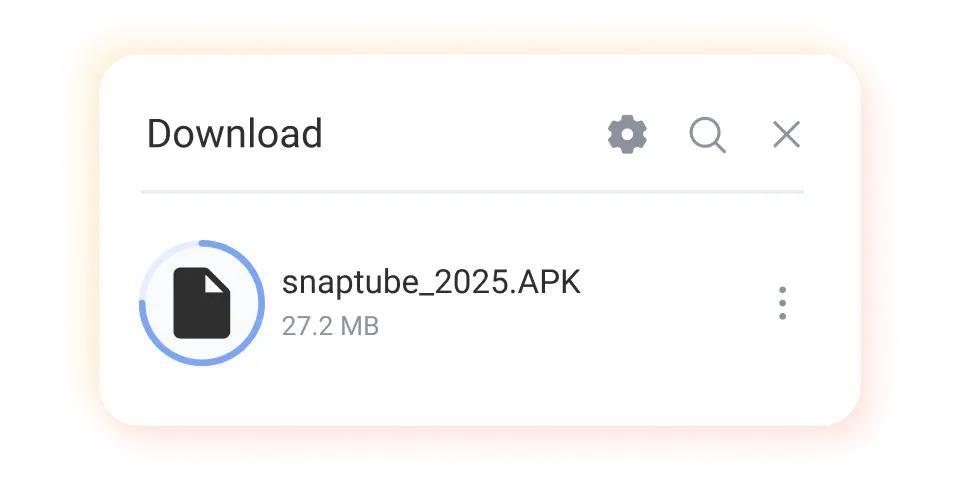
Step 1: Tap the Download Button
Tap Snaptube download now and the official APK starts downloading right away. You don't go through other pages and you don't need to install anything first.
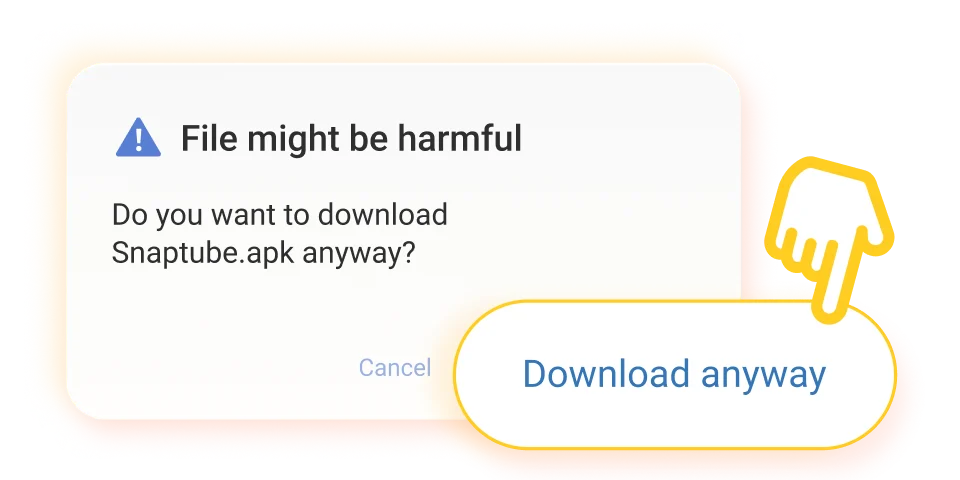
Step 2: Allow the Installation
Open the downloaded file and tap Allow if Android asks. This is the standard warning for apps that don't come from the store, and the full explanation is on our home page.
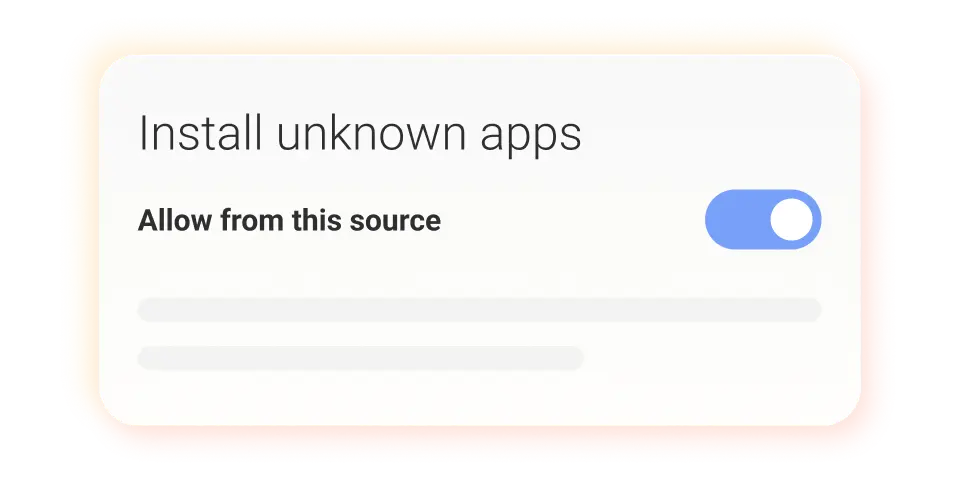
Step 3: Open Snaptube
Confirm the installation and tap Open. You don't need to create an account or log in to start using it.
From Your Phone's Store
If your brand has its own store, you can install it there: Xiaomi GetApps, OPPO App Market, vivo V-Appstore, Huawei AppGallery, HONOR App Market and Palm Store. Just search for Snaptube and tap install.
From Uptodown or APKPure
These two sites also distribute the official Snaptube. If you're unsure whether you're downloading the real Snaptube, see our home page for the signs that tell the official app apart from copies.
Snaptube App Download: What the App Does
Once installed, the app is already complete. Here's what you can do and how to do each thing.
Use Snaptube to Download Videos and Music from over 100 Sites
It works with Instagram, Facebook, TikTok and more than 100 other sites. You can search by name inside the app or, in the social network itself, tap share, then more, and choose Snaptube.
Choose the Format and Quality
When you tap download, the format screen appears: MP4 for video, MP3 or M4A for audio. There you also choose the resolution, from 144p up to 4K, and the sound quality, from 128 to 320 kbps.
Turn a Video into Music (MP3)
Want only the audio from a video? On the format screen, choose MP3 instead of MP4 and the file is saved as music.
Download Several Files at Once
You can select several items and download them all together, or download a whole playlist. It helps when you want everything ready before you leave home.
Watch and Listen Offline, without Switching Apps
Snaptube has its own player: open the downloads list and tap the file to watch or listen. Everything you've downloaded stays there, with no need to hunt through the file manager.
Keep Using Your Phone While It Downloads
The download continues in the background, so you can leave the screen and use other apps. When it finishes, the file is already in your list.
Snaptube Download on an Old or Low-End Phone
A basic phone, tight memory or an unstable connection won't stop the installation. Here's what changes in each case.
Devices with Little Memory
Snaptube is about 20 MB and runs well on entry-level models and older devices. It asks for only two permissions, storage and internet, so it doesn't bog things down in the background.
If the Download Stops Halfway
When your connection drops or you switch networks, Snaptube in download mode continues from where it stopped. There's no need to start all over again.
Saving to the SD Card
In the app settings you can change the destination folder and save to the SD card. That keeps your phone's internal memory from filling up.
Got an Error While Downloading or Installing?
Almost every error at this stage has a simple cause. Here are the four most common cases.
The Download Doesn't Start
Check your internet and try again. If it's still stuck, open the page in another browser or check whether your current browser has permission to download files.
The Installation Was Blocked
Android blocks the installation until you allow unknown sources for your browser or file manager. After installing you can turn it off again, and the step-by-step with images is on our home page.
The App Won't Open after Installing
Restart your phone and try opening it again. If that doesn't fix it, confirm your system is Android 5.0 or higher and download the latest APK to install over it.
I Can't Find the File I Downloaded
The APK is usually in your phone's Download folder. Open the file manager, go into that folder and tap the file to install it.
I Don't Have Android. Can I Still Download It?
Snaptube is an Android app and there is no version for iPhone or computer. Even so, you can still download videos and music on those devices.
On iPhone or Computer
Use our online tools straight from your browser: paste the link, choose the format and download, without installing anything. They also show a preview, so you can check the content before saving.
A Tool for Each Social Network
Each network has its own: Instagram at snapgram.io, Facebook at fvidgo.com, Pinterest at pinpea.com, TikTok at sssstik.com and Twitter (X) at twikite.com.
Frequently Asked Questions
Yes. There's no device limit, and since there's no registration, the app isn't tied to any one device.
More than 40. The app follows the language set on your phone, so on a phone set to English it opens in English.
To download, you need to be connected. Once the file is on your phone, you can watch and listen offline as many times as you want.
No. The installation is about 20 MB, and you can set downloads to go to the SD card.
Yes, when the video has subtitles. In Snaptube, on the format selection screen, tap more options and check the cc subtitle before downloading.